
Media
Organize music libraries and video episode filenames
Media files often arrive with noisy release names. Rename.Tools can turn them into predictable names for players, media servers, and shared folders.
Music library naming
For albums, filenames should preserve track order and remain readable outside the music player. If tags are available, load metadata and use artist, title, album, or track variables.
A practical music pattern is track number first, then artist, then title. It sorts correctly in folders and still makes sense when files are copied to a USB drive, phone, DJ library, or media server.
If your files do not have reliable tags, start with the existing filename and use Sequence for track order. You can still clean separators and casing without depending on metadata.
- 1Import one album at a time when track order matters.
- 2To enter a template below, click Add Text, paste the complete template including braces, then press Enter or Tab to apply it. It becomes draggable text and variable blocks; check the updated preview before continuing.
- 3Load metadata if the files have reliable audio tags.
- 4Add a Sequence rule and set its template to {media.track}. {media.artist} - {media.title}. A non-empty template replaces the whole name; this template uses tag track numbers, not generated {n} numbers.
- 5Keep Scope set to Name so audio extensions remain unchanged.
- 6Metadata cannot be loaded from pasted sample names. For real files, load audio tags first. Missing tags leave literal placeholders; fix the tags or use a separate {n}. {name} template before executing.
love story.mp301. Taylor Swift - Love Story.mp3Requires tags: track 1, artist Taylor Swift, title Love Story.
track_07.flac07. Artist - Song Title.flacRequires tags: track 7, artist Artist, title Song Title.
Video and episode cleanup
Video files often include dots, quality tags, release group names, and inconsistent episode casing. Use regex to extract the show and episode code, then clean separators with find and replace.
When you have a TMDb API key, use the media scraper to match episodes and bring in better titles before generating final names. If you do not want to use TMDb, you can still standardize S01E03-style filenames with regex alone.
For media servers, consistency matters more than clever wording. Choose one pattern for a library and reuse it across seasons.
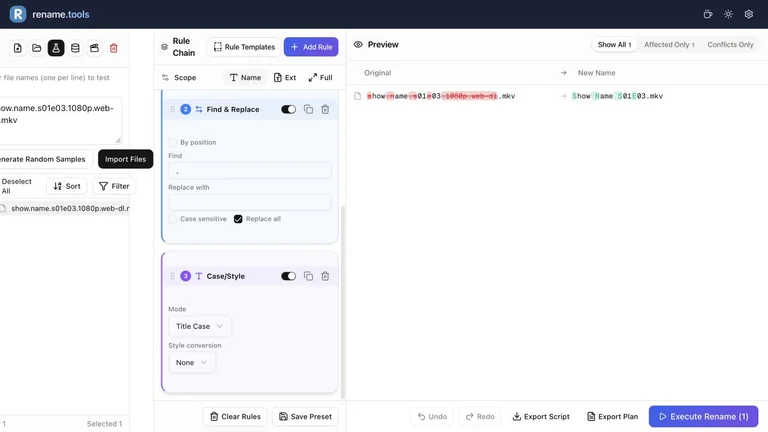
- 1Keep Scope on Name. Add Regex Replace: ^(.+)\.s(\d+)e(\d+).*$, replacement $1 S$2E$3, flags i.
- 2Add Find & Replace: find a literal dot, replace with a space, Match all on. The .mkv extension is unchanged because Scope is Name.
- 3Add Case/Style: Title Case, style None. This makes the show name readable while preserving S01E03.
- 4This recipe expects a dot before the episode code. Files with different separators need their own pattern; preview unmatched files.
- 5Preview the full season before executing.
show.name.s01e03.1080p.web-dl.mkvShow Name S01E03.mkvKeep media server compatibility
Use consistent separators and avoid changing extensions unless you are intentionally converting files elsewhere. Rename.Tools changes names, not media formats.
For shared libraries, prefer predictable patterns over clever names. A boring format that sorts correctly is easier to maintain and easier for other tools to parse.
Before renaming a large library, test one album or one season. Media libraries often contain edge cases: bonus tracks, specials, trailers, commentary files, subtitles, and multi-part episodes.
Handle subtitles and extras separately
Subtitle files need to keep the same base name as the video file so players can auto-detect them. Do not run a video-only cleanup on .srt or .ass files unless the resulting base names still match.
Extras such as trailers, interviews, samples, and behind-the-scenes clips should usually be filtered into a separate batch. They often do not follow the same S01E03 pattern as episodes.
- 1Filter video files and subtitle files separately when their naming rules differ.
- 2After renaming episodes, compare subtitle base names with matching video names.
- 3Keep extras in a separate folder or add a clear suffix such as extras or trailer.
- 4Export a plan before renaming a mixed media folder.
show.name.s01e03.1080p.en.srtShow Name S01E03.en.srtUse a separate subtitle chain: Name scope; regex ^(.+)\.s(\d+)e(\d+).*\.([a-z]{2})$, replacement $1 S$2E$3, flags i; replace dots with spaces; Title Case; finally Insert .en at End for this English subtitle batch.
Ready to try the workflow?
Open Rename.Tools, add a few sample files, and preview every rule before touching the real filenames.