
Numbering
Create stable filenames with sequence numbering
Sequence numbers are simple, but the setup matters. Padding, sort order, and scope determine whether names stay stable after export, upload, or archive.
Pad existing photo numbers
- Before
- photo1.jpg
- After
- 001_photo.jpg
- Before
- photo10.jpg
- After
- 010_photo.jpg
Preserves the first number in each name and pads it to three digits. Names without a number use the sequence counter instead.
Review the rules, then preview sample filenames without changing real files.
Use padding for reliable sorting
To enter a template below, click Add Text, paste the complete template including braces, then press Enter or Tab to apply it. It becomes draggable text and variable blocks; check the updated preview before continuing.
Without padding, file managers may sort 10 before 2. Padding fixes that by making every number the same width, so alphabetical sorting matches numeric order.
Use 2 digits for small albums, 3 digits for hundreds of files, and 4 digits when the folder may grow over time. Choosing one extra digit is usually harmless; choosing too few can create a messy rename later.
Padding is especially important when files will be uploaded to cloud drives, shared with clients, imported into editing software, or archived in systems that use simple alphabetical ordering.
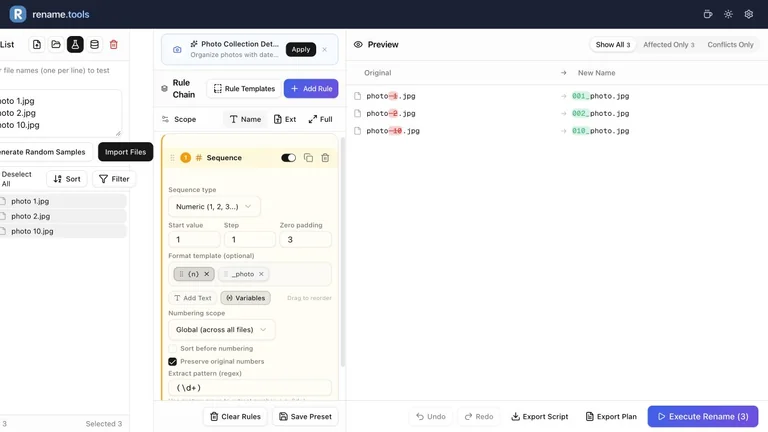
photo 1.jpg, photo 2.jpg, photo 10.jpg001_photo.jpg, 002_photo.jpg, 010_photo.jpgName scope; Sequence padding 3, Preserve original numbers on, pattern (\d+), template {n}_photo. This preserves 10 rather than assigning a new third number.
Choose the right sequence scope
Global numbering is best when the full batch should be one ordered set. Per-folder numbering is better for albums, chapters, exports, or client folders that should each start at 001.
Per-extension and per-category scopes are useful when one folder contains different file types. For example, screenshots and videos can each get their own numbering without being mixed into the same sequence.
- 1Use global scope for one album or one export batch.
- 2Use per-folder scope when each folder should keep its own sequence.
- 3Use per-extension scope when images, videos, and documents should be numbered separately.
- 4Sort before numbering when imported order is not reliable.
- 5Use natural sort for names such as file1, file2, and file10.
Combine sequences with templates
A sequence rule can do more than add a number. Combine {n}, {name}, dates, folder names, or metadata variables to create names that are structured but still readable.
Templates are strongest when the stable sorting part comes first. A pattern like {date}_{n}_{name} sorts by date first, then by sequence. A pattern like {name}_{n}_{date} may be more readable, but it will group by original name instead.
scan.jpgarchive_2026_001_scan.jpgName scope; Numeric Sequence, start 1, step 1, padding 3, template archive_2026_{n}_{name}, Preserve original numbers off.
Preserve numbers when the original order matters
Some files already contain useful numbers: scanned pages, exported frames, chapter files, or camera burst shots. In those cases, you may not want to generate a new sequence from import order.
Use Preserve original numbers when the number inside the filename is already the source of truth. Rename.Tools can extract that number, pad it consistently, and keep the relationship between old and new names clear.
- 1Enable Preserve original numbers in the Sequence rule.
- 2Keep the extract pattern as (\d+) for simple filenames with one number.
- 3Use a more specific pattern when filenames contain several numbers, such as page-(\d+).
- 4Set padding to 3 and template to page_{n}_scan for the example below. Keep Scope on Name.
- 5Preview files where extraction fails; they will fall back to normal sequencing.
page-7-scan.jpgpage_007_scan.jpgPreserving the original page number avoids changing document order.
Decide the order before you number
Sequence numbering is only as good as the order behind it. Import order can be convenient, but it is not always stable across browsers, folders, or operating systems.
For predictable results, choose the sort order intentionally before numbering. Name sorting works well for camera files, modified time can work for documents, and extension sorting is useful when you are numbering each file type separately.
- 1Use Sort before numbering when imported order is not meaningful.
- 2Choose File name for camera-style filenames that already sort correctly.
- 3Choose Modified time for document batches that were created or exported in order.
- 4Preview the first and last numbers to confirm the ordering is right.
scan10.jpg, scan2.jpg, scan1.jpg003_scan10.jpg, 002_scan2.jpg, 001_scan1.jpgName scope; start 1, step 1, padding 3, template {n}_{name}, Preserve original numbers off; enable Sort before numbering, File name, Ascending, Natural sort. Results are shown in original input order; scan10 receives 003, not 010.
Ready to try the workflow?
Open Rename.Tools, add a few sample files, and preview every rule before touching the real filenames.