
Getting started
Bulk file renaming basics: import, preview, execute
Bulk renaming works best when you treat it like a reviewable change: import a small set, add one rule at a time, and only execute after the preview is clean.
Start in Sample Test Mode
Sample Test Mode is the safest way to learn the interface because it does not ask for file permissions and cannot change anything on disk. You paste or generate filenames, then test the same rules you would use on real files.
Start with IMG_0421.jpg and IMG_0422.jpg, one per line, to reproduce the screenshots and the next rule chain. Later, add documents and video filenames to check how your rules affect different names.
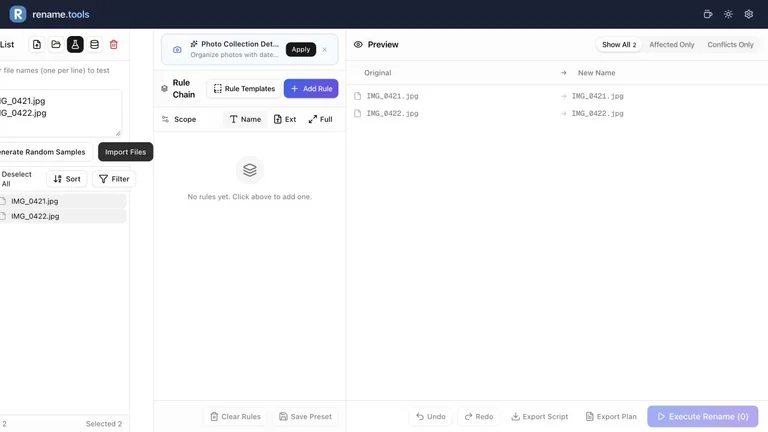
- 1Open the app and click Try Sample Test Mode in the file panel.
- 2Paste one filename per line, including the extension, such as IMG_0421.jpg.
- 3Click Import Files inside the sample panel.
- 4Confirm the file list and preview both show the same unchanged names.
- 5Keep Scope set to Name so the first rules do not accidentally rewrite extensions.
Build one rule at a time
To enter a template below, click Add Text, paste the complete template including braces, then press Enter or Tab to apply it. It becomes draggable text and variable blocks; check the updated preview before continuing.
A reliable bulk rename workflow is a sequence of small, reviewable edits. Add the cleanup rule first, check the preview, then add numbering. If the preview changes something unexpected, the last rule you added is the easiest place to look.
The first rule demonstrates removing a prefix. The Sequence template then replaces the whole name with a fixed date and a padded number; the prefix cleanup is optional when you use this whole-name template.
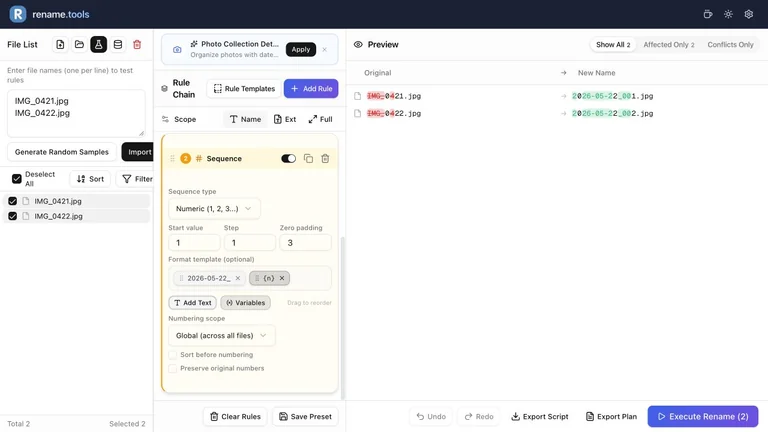
- 1Keep Scope set to Name. Add Find & Replace: Find IMG_, Replace with empty. The first preview becomes 0421.jpg.
- 2Add Sequence after Find & Replace: Numeric, Start value 1, Step 1, Zero padding 3, global scope. Leave Preserve original numbers and Sort before numbering off for this example.
- 3Set the Sequence template to 2026-05-22_{n}. A non-empty template replaces the entire name, so 0421 is discarded while .jpg is preserved by Name scope.
- 4The date is literal so you can reproduce the example on any day. Use {date}_{n} for the current UTC date instead, or {exif.date}_{n} after loading photo metadata for the capture date.
- 5Import IMG_0421.jpg and IMG_0422.jpg in that order. Confirm 2026-05-22_001.jpg and 2026-05-22_002.jpg in the preview.
IMG_0421.jpg2026-05-22_001.jpgName scope; Sequence template 2026-05-22_{n}, start 1, step 1, padding 3.
IMG_0422.jpg2026-05-22_002.jpgRead the preview like a checklist
The preview panel is not just a visual nicety; it is the review step. Scan the Original column first, then the New Name column, and look for changes that do not match the rule you thought you wrote.
Use Affected Only when the list is long. It hides unchanged files so you can focus on what will actually be renamed. Use Conflicts Only whenever the conflict count is non-zero, because duplicate target names must be fixed before execution.
- 1Check that every changed file still has the correct extension.
- 2Check that no new name is empty or only a number.
- 3Check that numbering order matches the file order you want.
- 4Check Conflicts Only before execution, even if the list looks clean.
report (final).docx005report (final).docxSeparate cautionary example: with a blank Sequence template, Position Start, start 1 and padding 3, the fifth selected file keeps its old name after 005.
Execute directly or export a script
In Chromium browsers, Rename.Tools can directly rename files selected through the File System Access API. In Firefox or Safari, or when you want a reviewable command-line workflow, export a script instead.
Script export is also useful for teams: one person can build and review the rename plan in the browser, then run the generated Bash or PowerShell script in a controlled folder.
- 1For real files, start with a small folder or a copied test folder.
- 2Click Export Plan if you want a plain mapping of old names to new names.
- 3Click Export Script when direct browser renaming is not available or you prefer terminal execution.
- 4Click Execute Rename only after the preview and conflict checks are clean.
- 5After execution, use Undo immediately if you notice a mistake.
Common first-run mistakes
Most mistakes come from applying a rule to more files than intended. If only photos should change, filter the file list first or build the rule so it matches only photo-style names.
Another common mistake is changing the full filename when you only wanted to change the name part. Keep Scope on Name for most workflows; switch to Ext or Full only when the guide or your own plan explicitly requires it.
movie.name.s01e03.1080p.mkv006movie.name.s01e03.1080p.mkvSeparate cautionary example: a blank Sequence template, Position Start, start 1 and padding 3 prefixes the sixth selected file with 006.
Ready to try the workflow?
Open Rename.Tools, add a few sample files, and preview every rule before touching the real filenames.